Let an AI Assistant Read Your Station
With MCP switched on, an AI assistant can ask your station questions: which ships are near, who arrived today, whether the station is healthy. The assistant only reads. It cannot change the station.
You need: AIS-catcher receiving ships, and an assistant that speaks MCP over HTTP, such as Claude Code.
Switch MCP on
In the dashboard, open Settings → Services → Main. Under Serves, switch MCP on. Switch System on too if the assistant should also see the station's health, its receivers and the log.
Press Save changes. The server serves it at once.
Dashboard open to your network?
Then Main is too, and its Access section asks who may read it. Press New key to make a key. System is never open on the network: it always takes a key.
Add "mcp": true to the server entry of the web viewer, or add an entry. Add "system": true too if the assistant should also see the station's health, its receivers and the log:
{
  "config": "aiscatcher",
  "version": 1,
  "server": [
    { "port": 8100, "mcp": true, "system": true }
  ]
}
| Key | What it does |
|---|---|
mcp |
Serves MCP at /mcp. |
system |
Adds the tools for the station itself: its health, receivers, outputs and log. |
Then restart AIS-catcher with the file:
AIS-catcher -C config.json
Map open to your network?
A server with MCP and no keys listens on this computer alone, and the map with it: the log says so. To keep the map open, give MCP a server of its own: { "port": 8101, "ui": false, "mcp": true, "system": true } beside the map's { "port": 8100 }.
Add -N with a port and mcp on to the command you already use. If it has a -N already, add mcp on after it. Add system on too if the assistant should also see the station's health, its receivers and the log:
AIS-catcher -N 8100 mcp on system on
Map open to your network?
A server with MCP and no keys listens on this computer alone, and the map with it: the log says so. To keep the map open, give MCP a server of its own: AIS-catcher -N 8100 -N 8101 ui off mcp on system on.
Try a tool
At the top of Main's page, press Try the API and choose MCP. Pick a Tool, such as search_vessels, and press Call. The answer is what the assistant gets.
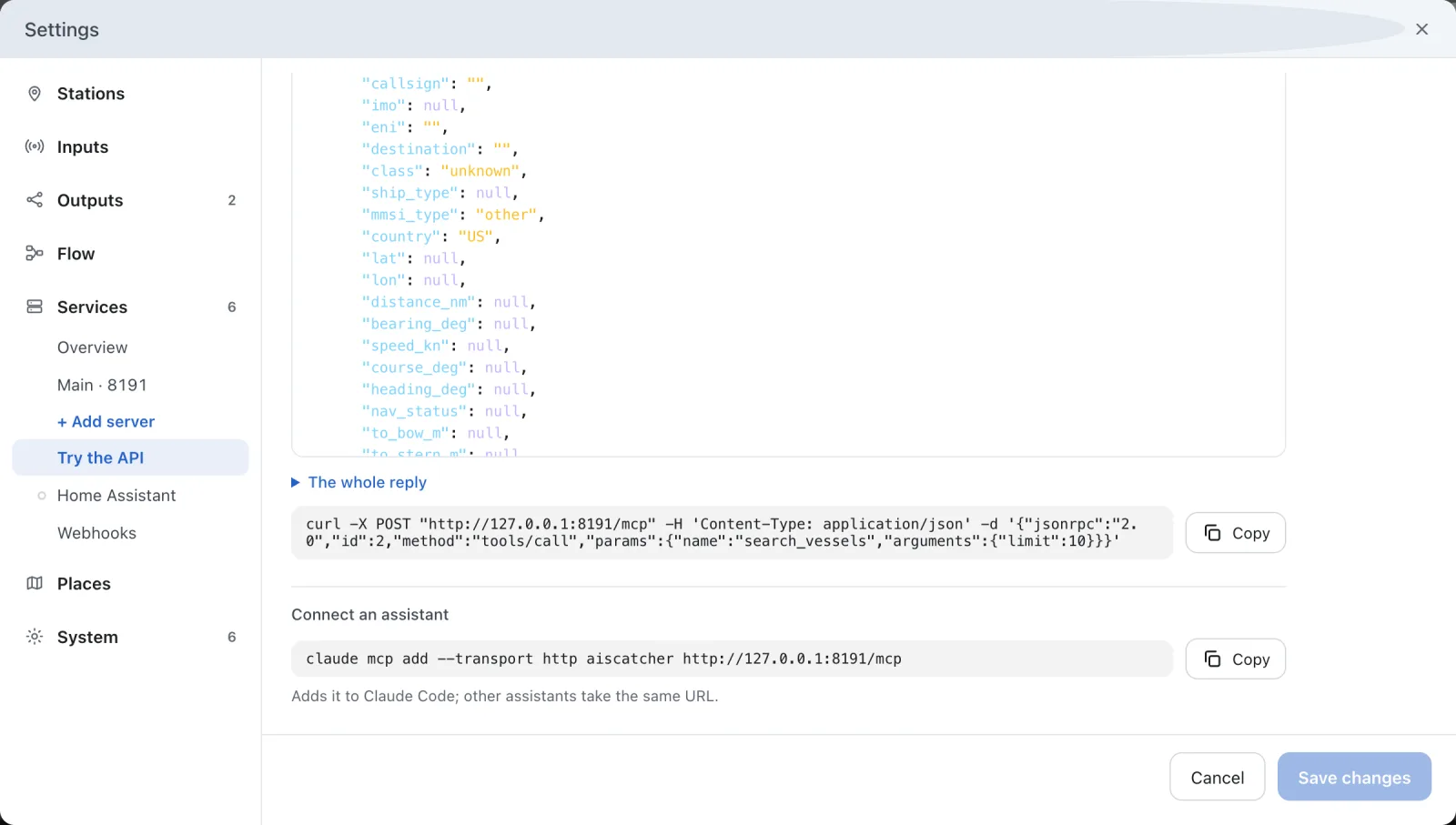
Try the API is part of the dashboard, which only managed mode has. curl calls a tool the way an assistant does. On the computer that runs AIS-catcher:
curl -X POST "http://127.0.0.1:8100/mcp" -H 'Content-Type: application/json' -d '{"jsonrpc": "2.0", "id": 1, "method": "tools/call", "params": {"name": "data_status", "arguments": {}}}'
The answer, under result, is what the assistant gets: the messages and vessels the station heard in the last minute, hour and day.
Connect the assistant
Under Connect an assistant, press Copy and run the line where your assistant runs. For Claude Code on the computer that runs AIS-catcher, it reads:
claude mcp add --transport http aiscatcher http://127.0.0.1:8119/mcp
For Claude Code on the computer that runs AIS-catcher, run:
claude mcp add --transport http aiscatcher http://127.0.0.1:8100/mcp
For Claude Code on the computer that runs AIS-catcher, run:
claude mcp add --transport http aiscatcher http://127.0.0.1:8100/mcp
Other assistants that speak MCP over HTTP take the same address.
From another computer
An assistant on another computer needs a server that listens on the network and takes keys.
Add one as in Ask Your Station, the API, and switch MCP on for it.
In Try the API, pick that server under Server and enter its key under Key. The line under Connect an assistant then names the server's address and adds the header for the key.
Add one as in Ask Your Station, the API, with "mcp": true. For the tools of the station itself, add "system": true and give the key both scopes:
{
  "config": "aiscatcher",
  "version": 1,
  "server": [
    { "port": 8100, "mcp": true, "system": true },
    { "port": 8110, "mcp": true, "system": true,
      "keys": [ { "name": "laptop", "sha256": "<sha256>", "scopes": ["data", "system"] } ] }
  ]
}
Restart AIS-catcher with the file.
To let everyone on the network use it without a key, write "public": true in place of keys and leave system out: AIS-catcher refuses it on a public server.
Add one as in Ask Your Station, the API, with mcp on. For the tools of the station itself, add system on and give the key the scopes data+system:
AIS-catcher -N 8100 mcp on system on -N 8110 mcp on system on keys laptop:data+system:<sha256>
To let everyone on the network use it without a key, write public on in place of keys and its value, and leave system on out: AIS-catcher refuses it on a public server.
Claude Code on the other computer then connects with the server's address and the key:
claude mcp add --transport http aiscatcher http://station.local:8110/mcp --header "Authorization: Bearer $KEY"
Check it works
Ask your assistant: Which vessels did my station hear in the last hour? It answers with ships from your own station.
MCP: an assistant reads the station lists every tool, and says how much room a model on your own computer needs for them.