Connect Your Receivers
Each input is a receiver that AIS comes from: an RTL-SDR or another radio, a dAISy-catcher on a serial port, or NMEA that arrives over the network. Add an input for every receiver you have.
You need: each receiver plugged into the computer that runs AIS-catcher. For NMEA over the network, the port it arrives on.
Add a receiver
- In the dashboard, open Settings, choose Inputs and press + Add input. The setup wizard adds the first receiver; + Add input adds another.
-
Press Find devices and pick the receiver from the list. This fills in its Device Type and its Serial Key, the serial number that tells two dongles apart.
For a receiver that is not in the list, choose the Device Type yourself. A dAISy-catcher is a Serial (NMEA receiver): press Find ports to pick its port.
-
Give the input a Name, such as Mast dongle. With more than one receiver, Statistics lists each by its name.
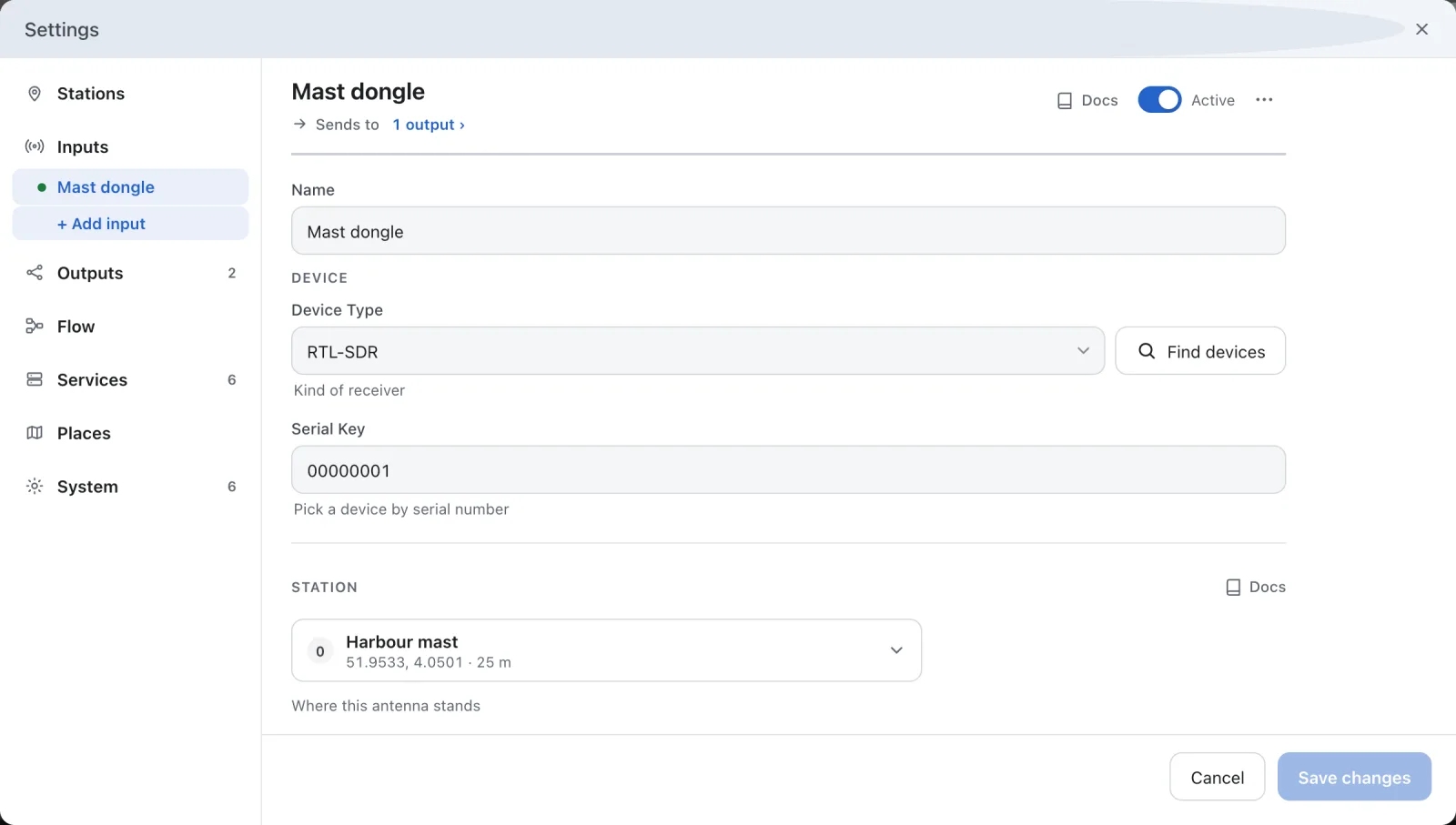
Add an entry to the receiver list for each receiver:
{
  "config": "aiscatcher",
  "version": 1,
  "receiver": [
    { "input": "rtlsdr", "serial": "00000001", "description": "Mast dongle" },
    { "input": "serialport", "serialport": { "baudrate": 115200, "port": "/dev/ttyACM0" }, "description": "dAISy" },
    { "input": "udpserver", "udpserver": { "server": "0.0.0.0", "port": 10110 }, "description": "Pier feed" }
  ]
}
| Key | What it does |
|---|---|
input |
The kind of device: rtlsdr, airspy, serialport for a dAISy-catcher or another NMEA receiver, udpserver for NMEA over the network, and so on. |
serial |
Picks one device of that kind by its serial number, the number that tells two dongles apart. |
serialport |
The port of a serial receiver and its baudrate. A dAISy-catcher runs at 115200. |
udpserver |
The port NMEA arrives on. "server": "0.0.0.0" listens on every network the computer is on. |
description |
The receiver's name. With more than one receiver, Statistics lists each by its name. |
AIS-catcher -l lists the devices that are connected, with their serial numbers. Inputs has a page for every kind of device.
Each input switch adds a receiver: -d picks a device by its serial number, -e opens a serial port at a baud rate, and -x listens for NMEA over UDP. Add them to the command you already use:
AIS-catcher -d 00000001 -e 115200 /dev/ttyACM0 -x 0.0.0.0 10110
AIS-catcher -l lists the devices that are connected, with their serial numbers. A dAISy-catcher runs at 115200. With -x, 0.0.0.0 listens on every network the computer is on. Inputs has a page for every kind of device.
The command line has no setting for a receiver's name: Statistics lists each by its kind and number, such as RTL-SDR #1. To name them, use a configuration file.
From the command line to a configuration file
Add -J to print your command line as a configuration file instead of running it: AIS-catcher -d 00000001 -J.
Choose its station
Under Station, choose where this antenna stands. With one station, leave it as it is. For an antenna at another place, pick New station… in the list.
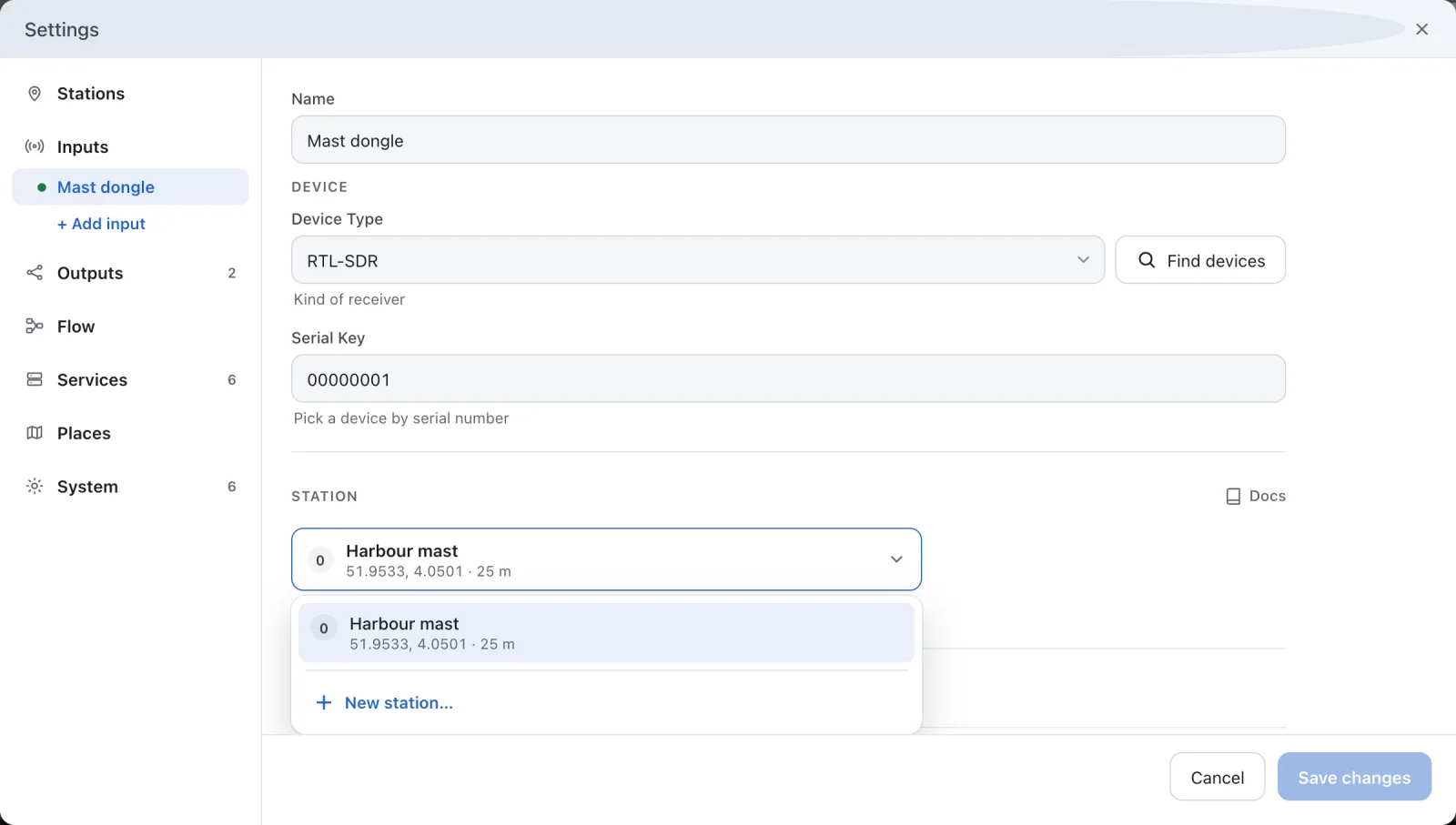
station is the id of the entry in stations where this antenna stands. With one station, leave it out: a receiver that names none stands at station 0. For an antenna at another place, add a station and name it:
{
  "config": "aiscatcher",
  "version": 1,
  "stations": [
    { "id": 0, "name": "Harbour mast", "lat": 52.10, "lon": 4.27, "share_loc": true },
    { "id": 1, "name": "Pier", "lat": 52.11, "lon": 4.25, "share_loc": true }
  ],
  "receiver": [
    { "input": "rtlsdr", "serial": "00000001", "description": "Mast dongle" },
    { "input": "udpserver", "udpserver": { "server": "0.0.0.0", "port": 10110 }, "description": "Pier feed", "station": 1 }
  ]
}
Name and Place Your Station explains the keys of a station.
The command line describes one station, on the -N of the web viewer, and every receiver stands there: see Name and Place Your Station. Antennas at different places need a configuration file.
Save and start
Press Save changes. If the receiver is stopped, press Start in the control bar.
Restart AIS-catcher with the file:
AIS-catcher -C config.json
Restart AIS-catcher with the new command line.
Check it works
- In an area with traffic, the ships the new receiver hears appear on the dashboard map within a few minutes.
- In the dashboard, open Statistics. Under System, each input is listed as a Device, and Message rate shows what comes in.
Nothing from the new receiver?
Open Settings → Inputs. A mark next to an input means it needs attention: hover over it to see why, for example a device that is unplugged or used by another program. A hollow dot marks an input that is switched off.
- In an area with traffic, the ships the new receiver hears appear on the map of the web viewer within a few minutes.
- In the web viewer, open Statistics. Under System, each input is listed as a Device, and Message rate shows what comes in.
Nothing from the new receiver?
AIS-catcher says why in its log when it starts, for example that it cannot find a device with that serial number. AIS-catcher -l lists the devices it can see. An entry with "active": false is switched off.
- In an area with traffic, the ships the new receiver hears appear on the map of the web viewer within a few minutes.
- In the web viewer, open Statistics. Under System, each input is listed as a Device, and Message rate shows what comes in.
Nothing from the new receiver?
AIS-catcher says why in its log when it starts, for example that it cannot find a device with that serial number. AIS-catcher -l lists the devices it can see.